Cleaning up a guest list in Excel: lost leading zeros and garbled CSV text
How to prepare a guest list spreadsheet before adding it as ticket recipients: which columns the upload accepts, why leading zeros disappear from phone numbers and what to do, what to check when CSV text is garbled, and how to read the check results.
Last updated · By All2Wallet
First: the upload accepts only two columns
Guest lists usually have many columns: name, phone, organization, how people signed up, notes. When you add recipients to an All2Wallet ticket list, however, only two are saved: name and email. A name is required; an email is optional. Uploading your original list as it is usually breaks this rule, so the starting point of this guide is making a separate file just for the upload.
Upload rules at a glance
- Accepted columns: name (required) and email (optional). A row with values in any other column is left as it is and not added. The screen says: "This row has values in other columns (ticket type, session, seat and so on), so it cannot be added."
- File types: XLSX or CSV. You can also paste (comma or tab separated). The older Excel format (.xls) is not accepted, so save it again as .xlsx first.
- Size: files up to 2 MB and up to 500 people at a time. Each list holds up to 500 people including existing recipients.
- XLSX: only the first sheet is read. A file with formulas, macros or external links is refused as a whole, never read in part. This applies even if the formula is on a sheet other than the first. The screen then says: "The file could not be read. Check that it is XLSX, within 2 MB and 500 people, and has no formulas or macros. Nothing was added."
- Header row: if the first row has "Name" and "Email" (or "E-mail", or the Korean 이름 and 이메일), the columns are found in any order. Without a header row, the first column is read as the name and the second as the email.
- Order of steps: choose a file or paste, press "Check entries", review the result, then add people yourself. Checking adds no one, and adding does not issue tickets or send email.
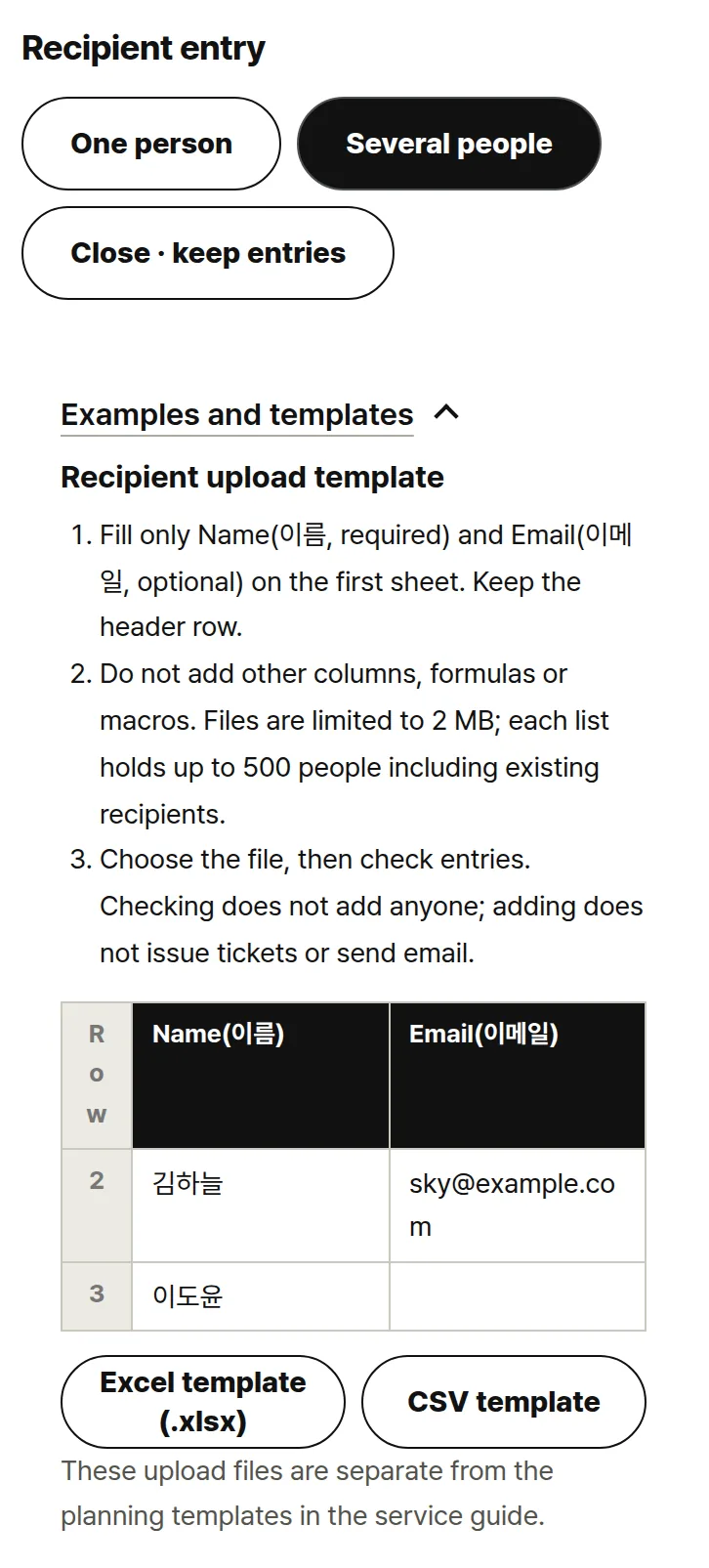
In a ticket list, open recipient entry, choose "Several people" and expand "Examples and templates" to download the "Recipient upload template" as "Excel template (.xlsx)" or "CSV template". The first sheet of the template has only the two header cells (이름 for name and 이메일 for email). The "Ticket planning templates" on the service overview page are planning files with columns such as ticket type, session, area and seat, so uploading them as they are adds no one.
Making the upload file from your original list
Leaving the original list untouched and making a new file for the upload causes the fewest mistakes. If you edit the original as you go, it is hard to get phone numbers or notes back when you need them later.
- Open the Excel template (.xlsx) from the service. If you are not using it, create a new workbook and put Name and Email in the first row.
- Copy only the name and email columns from your original list. Do not bring over phone, organization or notes columns.
- Paste values only into the template. If the name cells in your original are formulas (references to another sheet, joined first and last names and so on), the formulas come along and the whole file may be refused.
- Scan for leftover total rows, section titles between blank rows or "example" rows. Blank rows are skipped, but a section title or total row is read as a name.
- Save as XLSX. If you use Excel, uploading the XLSX as it is, rather than converting to CSV, means you do not have to worry about garbled text.
- In the ticket list, choose the file and press "Check entries". Review the result, then add people (see "Reading the check results" below).
If you have no time to make a file, pasting is fastest. Select the name and email columns side by side in Excel, copy them and paste into the entry box. The columns arrive separated by tabs and can be checked as they are. Again, copy only those two columns.
What happens when header names differ
- When the header is not exactly "Name", for example "Full name" or "Name (first and last)": the first row is not recognized as a header and is read as a person. If there is an email column, that row needs fixing because its email is not valid, and it is not added. But in a list with names only, the header row shows up as a person called "Full name", ticked under ready to add. Find that row in the results, such as "Line 1 · Full name" (ready rows come after rows that need fixing and duplicate candidates), and untick it, or change the header to "Name" and check again. In a file saved with semicolons, every line, not just the "Name;Email" header, is read as one cell, so unticking does not fix it; upload an XLSX instead, as described under "Check the separator too".
- The "Name(이름)" and "Email(이메일)" in the on-screen example table are labels for explanation. The headers in the downloaded template are 이름 (name) and 이메일 (email); use these when you make your own file too (Name and Email also work).
- When the email header is something like "Mail" or "Email address": the email column is not found and is treated as another column. Every row that has an email is then not added. Change the header to "Email".
When leading zeros disappear from phone numbers
One point first: the ticket recipient upload does not need a phone column. If you include one, those rows are not added because they have values in another column. Removing the phone column from the upload file is the fix, and it is also better not to move personal data you will not use.
Your original list is still useful for contacting people, though, so it helps to know why zeros disappear. According to Microsoft support, Excel automatically removes leading zeros from values that look like numbers so that formulas and calculations work on them. That is why a number starting with 0, typed in as it is or opened from a CSV by double-clicking, turns into a number without the 0.
When entering new numbers
- Before typing, format the whole phone column as Text. Zeros are kept for values entered after the format is applied.
- For just a few cells, typing an apostrophe (') before the number also makes Excel treat it as text.
When the zeros are already gone
- Changing the format to Text does not bring back zeros that were already removed (Microsoft support gives the same warning).
- If every value was originally a number of the same length, you can restore the leading zero in an empty column with a formula that pads to that length, for example =TEXT(A2,"00000000000") for 11-digit numbers. Replace A2 with the cell holding the number.
- If the column mixes numbers of different lengths, such as landlines with area codes and mobile numbers, that formula can produce wrong numbers. In that case it is safer to copy them again from the original sign-up responses or the first file you received.
- Turn the formula column into values with paste values. As before, this column does not go into the upload file.
Numbers in CSV files from the service change for the same reason
In "Links for handing out (CSV)" and "Activity history CSV", ticket numbers are saved with six digits, such as 000001. If you double-click one of these files to open it in Excel, the number may show as 1, and saving it again in that state changes the number in the file too. Microsoft support also says to use the import feature and set such a column to Text when numbers start with zeros. To see the numbers as they are, open the file with Excel's data import (Data > From Text/CSV) and set the Number column's data type to Text. Keep the original file you downloaded untouched and work on a copy. The links CSV holds names, emails and ticket links, and anyone with a link can open that ticket. Make only the copies you need, do not post them in group chats or shared folders, and delete them when you are done.
When CSV text is garbled
A CSV file often does not record how its characters were saved (its encoding), so text is garbled when the program that saved it and the program that opens it disagree. What to do depends on which direction the problem goes.
When uploading to the service
- The surest way is to upload the XLSX as it is. The server reads the sheet contents, so there is no encoding to choose.
- When you upload a CSV, the browser reads it as UTF-8 first and, if broken characters appear, reads it again in the older Korean Windows encoding (the EUC-KR family). So files saved as "CSV UTF-8" in Excel and files saved as plain "CSV" are mostly both read correctly.
- Still, always check that names look right in the check results. If names show question marks or odd symbols, do not add them; upload an XLSX instead or save the CSV again as CSV UTF-8 and check again.
Check the separator too
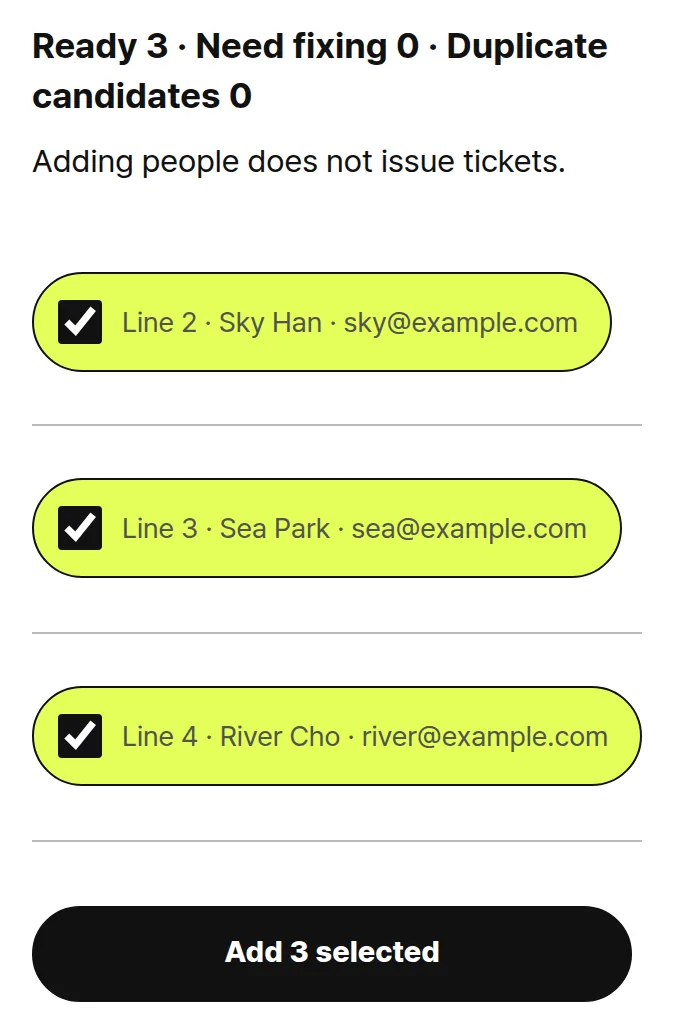
The service uses only commas and tabs as column separators (tabs if the first line contains a tab, otherwise commas). According to Microsoft support, Excel can save a CSV with semicolons (;) instead of commas depending on regional settings. In a semicolon-separated file the columns are not split, so "Sky Kim;sky@example.com" is read as one name, and that row may show as ready to add with no error. Check that each line in the results is split with a middle dot, like "name · email", and if you see semicolons, upload an XLSX instead.
When opening a downloaded CSV in Excel
- CSV files downloaded from the service (Links for handing out (CSV), Activity history CSV) start with a UTF-8 marker (BOM). Apps such as Excel use this marker to recognize the file as UTF-8. Results can differ by Excel version and operating system, so if Korean names look garbled, open the file as described next.
- If a CSV from another tool is garbled in Excel, open it with data import instead of double-clicking, change File origin (the character set) to UTF-8 (65001) and check in the preview that the text looks right. Microsoft support says to change this setting when the file was created with a different character set from the one your computer uses.
Reading the check results
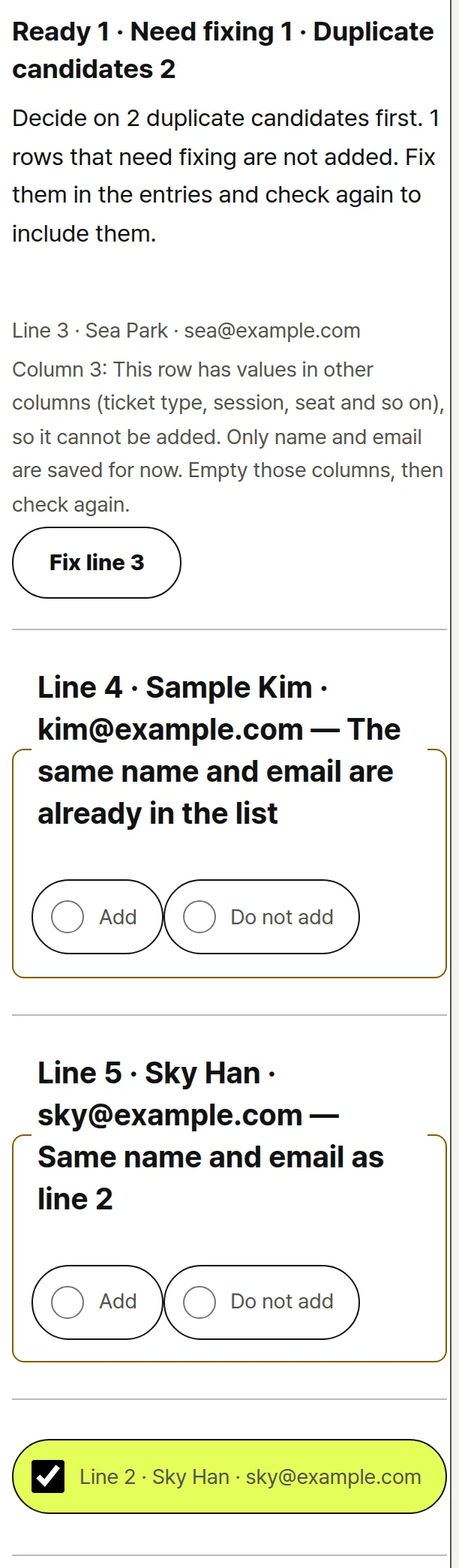
After you press "Check entries", the top shows "Ready N · Need fixing N · Duplicate candidates N", followed by results for each row. Problems are always named by the line in your entries, and for an XLSX the sheet row is shown too, as in "Line 3 (sheet row 3)".
- Ready: shown already ticked. Untick anyone you do not want to add.
- Need fixing: the column and the reason are shown, with a "Fix line N" button. This happens when the name is empty, the email format is wrong or another column has a value. These rows are not added; fix them in the entries and check again to include them.
- Duplicate candidates: rows where both the name and the email match (emails are compared without regard to upper or lower case), either another line in your entries or someone shown in the list on screen. The service does not remove or merge them for you, so choose "Add" or "Do not add" yourself. While any duplicate candidate is undecided, the add button does not appear.
- Adding to a list that already has many people: existing recipients are compared only with the recipients currently loaded on screen (one page of 25, with any search or status filter applied). If the list runs over one page, search the recipients after adding to make sure no one was added twice.
- The same name with a different email, or only the same email, is not a duplicate candidate. This avoids blocking people who share a name, or family members who share one email address. Two people with the same name and no email, however, match on both name and (empty) email, so they appear as duplicate candidates. To add both, choose "Add" for each.
Once you have reviewed the results, press "Add N selected". If you change the entry box after checking, you have to check again before adding. Adding people still does not issue tickets. You issue tickets separately after choosing recipients.
Common mistakes
- Uploading the whole sign-up form export: columns such as phone, organization or consent mean almost no row is added. Upload a file with only the name and email columns.
- Using the ticket planning template as the upload file: rows with values in ticket type, session, area or seat are not added. Keep the planning template for preparation and download the upload template separately.
- Uploading a links CSV into another list: its number, status and ticket link columns mean nothing is added. To add the same people to another list, keep only the name and email columns.
- Saving name cells that are formulas: a single formula makes the whole XLSX file refused. Upload a new file with values pasted.
- Trying to fix lost zeros with formatting: formatting cannot restore zeros that are already gone. Copy the numbers again from the original, or use the TEXT formula only when every number has the same length.
- Adding a semicolon CSV as it is: the name and email may be added stuck together as one name. Check that the results show them split with a middle dot (·).
Summary
Keep the upload file separate from your original, with only the name and email columns, and if you use Excel, upload the XLSX as it is. Phone numbers are not used in the upload, so keep them as text in your original list only. When you use a CSV, first check in the results that names look right and that the columns are split.