Contact QR on a business card: profile link or direct contact?
Whether your card's contact QR should open a profile link or carry your contact details directly: what happens when your details change, when there is no internet and when you delete the card, with simple rules for choosing.
Last updated · By All2Wallet
The key difference: what goes inside the QR
When you create a personal card on All2Wallet, you choose one of two types for the "QR for saving contact". The names sound similar, but what goes inside the QR is completely different, and that difference decides what happens later when you edit your details or delete the card.
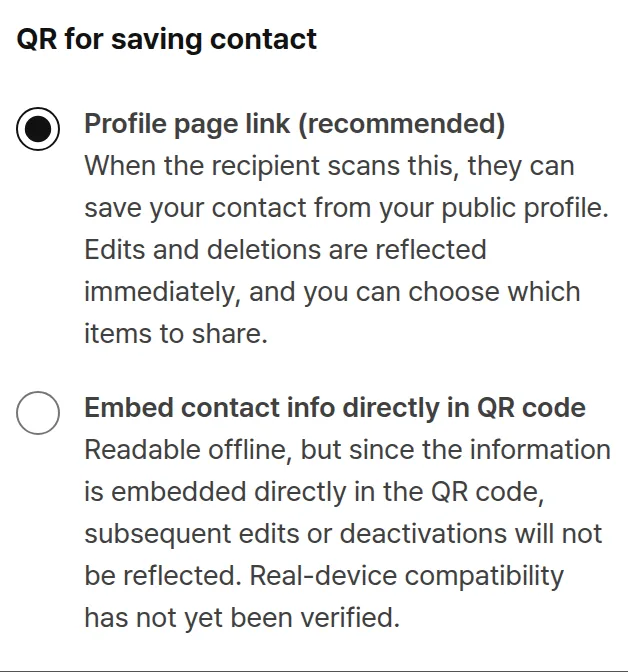
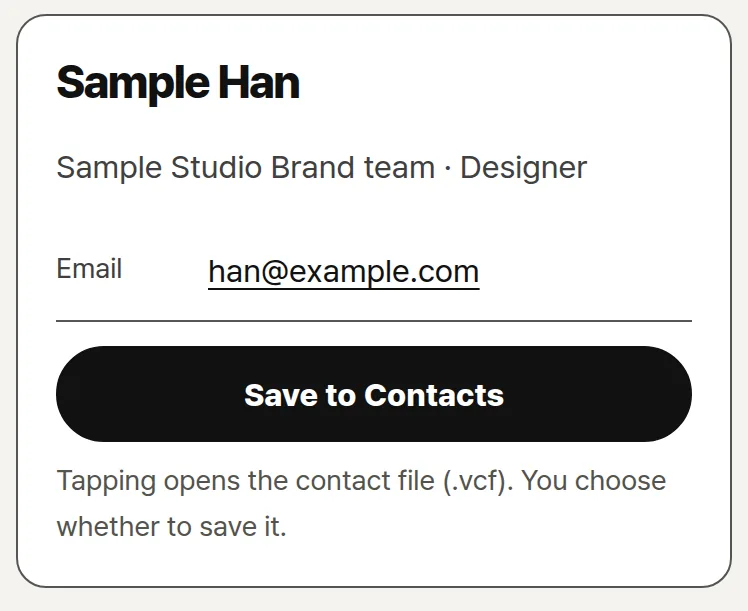
- Profile link (labeled "Profile page link (recommended)" on screen): the QR holds just one line, the address of your public profile page. When someone scans it, your web card opens; they tap "Save to Contacts", get a contact file (.vcf) and choose to save it. This is the default on the creation screen and the recommended option.
- Direct contact (labeled "Embed contact info directly in QR code" on screen): the QR holds the contact card (vCard) itself. On devices that support it, the contact in the QR can be read and added without visiting a web page, and it can be read without an internet connection.
Both types include the same fields: your name, company and department, job title, and any office phone, mobile number and email you have chosen to share. Your address and website are never included on the card, in the QR or on the public profile, even if you have saved them.
Side-by-side comparison
| Situation | Profile link | Direct contact |
|---|---|---|
| Internet needed by the person receiving | Yes (the web card has to open) | Not on supported devices |
| What the person receiving does | Scan → web card → Save to Contacts → choose to save | Scan → add-contact screen → choose to save |
| After you edit your details on the web | The web card opened from the same QR shows the changes | A QR you have already shown does not change |
| After you delete the card | Scanning no longer opens the web card | The contact in the QR can still be read |
| Contacts already saved by others | Not updated | Not updated |
| QR appearance | One address, so fewer, larger squares | More details mean more, smaller squares |
The row people misunderstand most is "Contacts already saved by others". It is easy to assume a profile link updates automatically, but what updates is only the web card that is opened from that QR or link from now on. A copy someone has already saved in their contacts does not change with either type.
The last row, QR appearance, is also worth knowing. The more a QR holds, the more squares it needs. With the same fictional details (name, company, department, job title, office phone and email), the profile link QR was 29 squares across and the direct contact QR was 57. Shown at the same size, each square of the direct contact QR is about half as wide. How much this affects how quickly it scans can depend on screen size and brightness and on the other person's phone and camera app, so try scanning on two kinds of phone before you hand it out, as described below.
Which to choose: four questions
Answering these questions in order settles most cases. If any answer points to the profile link, the profile link is the safer choice.
Before the questions: a card made without signing in stops being reachable on the server 24 hours after it is created unless you import it into your account, and after that a profile link QR no longer opens the web card. If you will use the card for a long time, sign in and import it into My cards before choosing a type.
- Is your phone number, job title or company likely to change in the next year? If so, the profile link is better. Once you show a direct contact QR, there is no way to take its contents back.
- Do you want the QR to stop working when you delete the card? Then choose the profile link. If someone keeps a photo or screenshot of a direct contact QR, it can still be read after you delete the card.
- Will people mostly receive it somewhere with poor internet? If the data connection is uncertain, such as a basement exhibition hall or visitors from abroad, direct contact may help.
- Are the people receiving it using many different phones? Depending on the phone and camera app, a direct contact QR may not be recognized as a contact, and the service states that real-device compatibility has not yet been verified. If you do not know what phones people use, the profile link, which opens as an ordinary web page, is the safe default.
Recommendations by situation
- Sales or freelance work with frequent job or title changes → Profile link. Your edits show on the web card opened from then on.
- A temporary card for a single event day → Profile link. Delete the card after the event and the QR stops opening it.
- A booth in a basement hall where many people receive the card → Consider direct contact. People can read it without internet. Create it only once your details are final.
- Your number has not changed in years and will not → Either works. There is little risk of change, so choose what is easier for the people receiving.
What to check after choosing
Check which fields you share
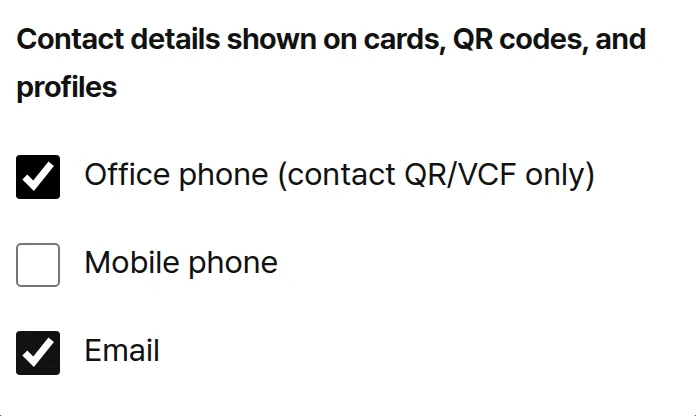
Before choosing a QR type, decide which contact details to share. You can turn sharing on or off for your mobile number, email and office phone (labeled "Office phone (contact QR/VCF only)" on screen), and anything turned off is left out of both types. Your office phone goes only into the contact QR and the contact file; it is not shown on the front of the card or on the public profile page. So if your office number does not appear on the profile page, it has not been dropped. Save the contact and you will find it there.
With a profile link, anyone who sees the QR can open your public profile. Turn on only what you are comfortable with strangers knowing, for example sharing an office number but not your mobile.
Test it on two phones yourself
After saving your card, scan the QR for saving contact with one iPhone and one Android phone before you actually hand it out. Borrowing a family member's or colleague's phone is fine.
- Open the "QR for saving contact" on the management screen. Check the heading so you do not confuse it with the Wallet installation QR.
- Scan it with the other phone's camera. A profile link should open the web card; a direct contact should show an add-contact screen.
- Choose to save, then check in the contacts app that the name, company, job title and numbers came through correctly. Scanning the QR or receiving the file does not by itself save the contact.
- For direct contact, also try scanning in airplane mode. Working without internet is the reason to choose this type.
Real-device compatibility of the direct contact type has not yet been verified. Even with the same QR, some phones and camera apps may not open an add-contact screen straight away, so check on two kinds of phone as described above before handing it out. If one of them does not recognize it as a contact, switching to the profile link is the safer choice.
If you want to change the type later
You can choose the QR type again on the edit screen. After the change, the QR for saving contact shown on the management screen uses the new type, but anything you have already handed out needs handling separately.
- A card saved in Apple Wallet: the saved card does not change automatically. After editing, add it to Apple Wallet again and check how it looks.
- A card saved in Google Wallet: a card already issued does not change automatically; contact the operator for an updated version.
- Switching from direct contact to profile link: a direct contact QR you showed before, if someone kept a photo of it, still reads with the old details. There is no way to recall it.
- Other people's contacts: whichever type you use, contacts already saved do not change. For an important change, the only way is to tell people directly.
Common mistakes
- Showing the Wallet installation QR to others: the installation QR is for adding the card to your own Wallet and, like your secret management link, must not be shown to others. Show people only the "QR for saving contact".
- Making a direct contact QR just before changing your number: dozens of people at an event may photograph a QR that keeps your old number. If a detail is about to change, wait until it is final or use the profile link.
- Leaving a card made without signing in: a profile link card made without signing in no longer opens the web card from its QR after 24 hours. Sign in within 24 hours of creating it and import it into My cards. Editing or reissuing does not extend the expiry.
- Assuming others' contacts changed because you edited on the web: only the web card opened from now on changes.
- Re-entering your office number because it is missing from the profile page: the office phone is deliberately not shown on the page and goes only into the contact file.
Summary
If your details may change or you might delete the card later, choose the profile link. If your details are settled and you often hand out cards where there is no internet, choose direct contact. Either way, the most reliable check is to scan it once on two kinds of phone before handing it out.