What to show on a digital business card: choosing fields to limit personal data exposure
Where each field of an All2Wallet digital business card appears, how to decide whether to share your mobile phone, email and office phone, what to check before and after creating the card, and how to share less once you have already handed it out.
Last updated · By All2Wallet
First: a digital card is hard to take back once handed out
Only the person you hand a paper card to sees it. A digital card is a little different. Anyone who has the QR code or link can open your All2Wallet public profile (web card) without signing in, and they can pass the link on to others. The service sets the public profile to be excluded from search engines and not cached, but it cannot take back a link that has been shared again.
These are things the service cannot change, even if you edit or delete your card later:
- Contacts that someone has saved to their own address book
- The content of a QR code you already handed out with "Embed contact info directly in QR code"
- What a card you added to a Wallet shows (editing on the web does not update it automatically)
So this guide follows one principle: rather than counting on deleting things later, share only what people need to contact you from the start.
Where each field appears
Fields on the creation screen appear in different places. The list below reflects how the service works now. Here, "contact file" means both the .vcf file people get by pressing "Save to Contacts" on your web card and the contact details inside your QR for saving contact.
- Name (required): appears on the web card, the Wallet card and in the contact file.
- Company/Affiliation (required): appears in all of them. Sole proprietors and freelancers can enter a business name or affiliation, as the creation screen suggests.
- Title and Department (optional): appear in all of them if you fill them in. You can create a card with them left empty.
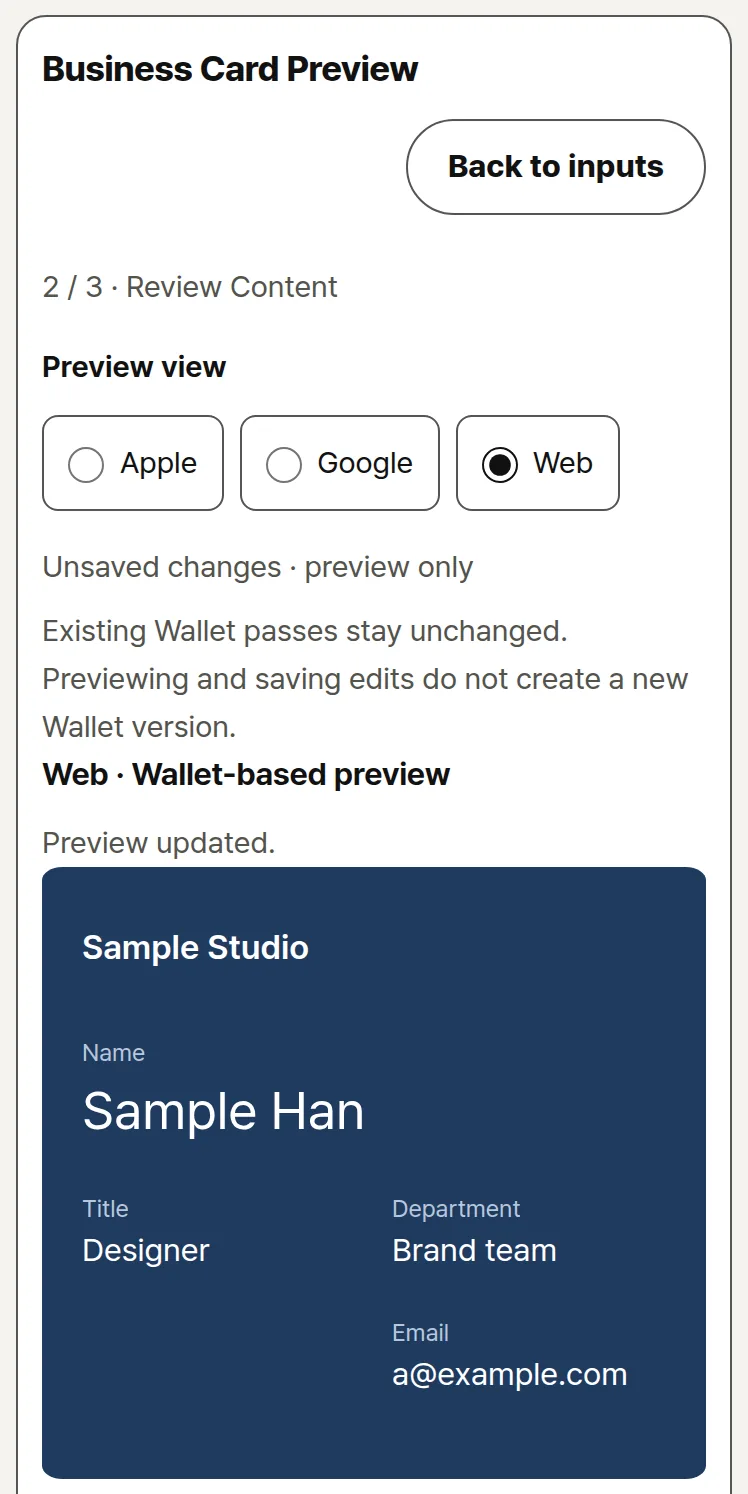
- Mobile phone (optional): appears on the web card, the Wallet card and in the contact file only when sharing is on. With sharing off, it appears nowhere.
- Email (optional): works the same way as the mobile phone. It appears only when sharing is on.
- Office / main phone (optional): with sharing on, it goes into the contact file only. It is not shown on the front of the card or on the public profile.
- Address and Website (optional): they are saved if you enter them, but do not appear on cards, QR codes or public profiles.
Sharing starts switched on
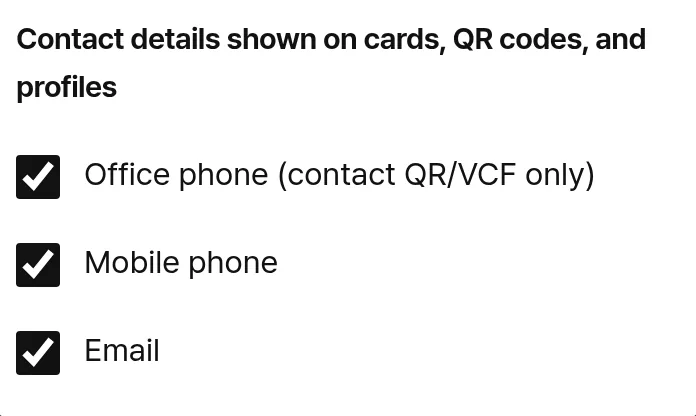
When you create a new card, all three items under "Contact details shown on cards, QR codes, and profiles", namely "Office phone (contact QR/VCF only)", "Mobile phone" and "Email", start ticked. Simply entering a phone number or email makes it public, so untick anything you do not want to share. A field left empty does not appear, whether it is ticked or not.
"Not shown on screen" is not the same as "nobody can see it"
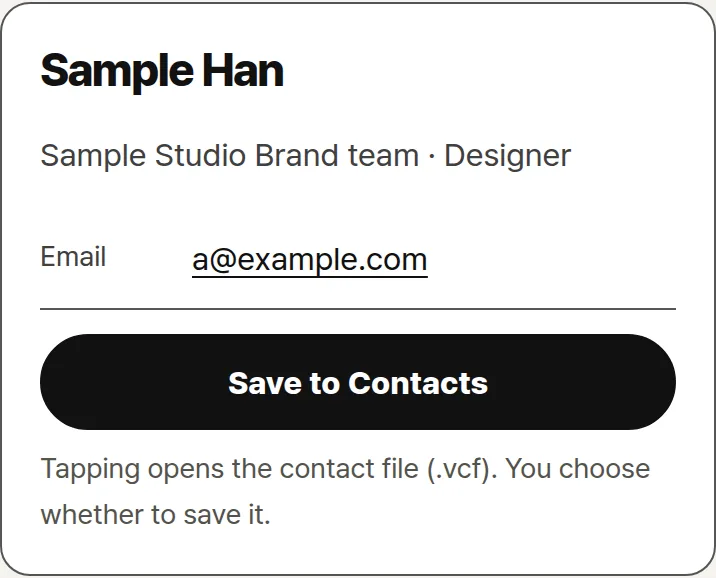
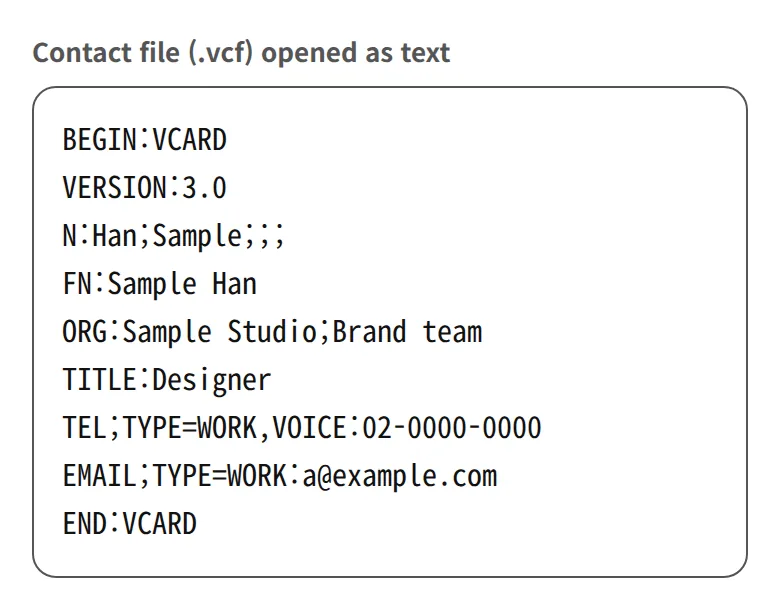
The office or main phone (the field "Office / main phone"; its sharing tick is "Office phone (contact QR/VCF only)") does not appear on the web card, but it is in the contact file people get with "Save to Contacts". Anyone who can open your public profile can get that file. So if you want to keep a number private, do not put it in the office phone field either.
Address and website do not appear anywhere at the moment. If you have no use for them, leaving them empty from the start makes no difference to using your card, and it is also better not to hand over personal data you will not use.
How to decide: three questions
Question 1. Who will receive this card?
A card you hand to one person in a meeting is different from one whose QR code is shown at a trade show booth, on a presentation slide or in a post for many people to scan. The less you can choose who receives it, the fewer fields you should share. If you use the same card in several settings, it is safer to decide based on the one where it spreads most widely.
Question 2. Is one way to reach you enough?
A first contact usually needs only an email address. Sharing just your email, with the mobile phone switched off, and giving your number separately once a conversation continues, limits exposure while still leaving a way to reach you.
Question 3. Is that number or email yours alone, or for work?
If you use one personal mobile number for both work and private life, it is hard to change once it has spread. If you have a company main number or a separate work number, use that, and consider switching off sharing for your personal number first. A work email address is also easier to manage later than a personal one.
Examples by situation
- When you meet many new people, as at a trade show or networking event: share only your name, company/affiliation, title and email. Switch off the mobile phone.
- When you need to stay in touch with a client contact: add the office or main phone. It is included only when they save you to their contacts and is not shown on screen. Switch on the mobile phone only when you judge it necessary.
- When you work on your own as a freelancer or sole proprietor: use your business name for company/affiliation, and if you have a separate work number, share it as your mobile phone. If you have only a personal number, consider switching it off and being reached by email instead.
These examples are only there to help you decide. What is right depends on where you use the card and who receives it.
How the QR type and Wallet change things
With the same sharing choices, how much you can change later depends on how you hand the card out.
- "Profile page link (recommended)" QR: each time someone scans it, your public profile opens as it is at that moment. If you switch sharing off later, the web card and contact file opened after that reflect the change.
- "Embed contact info directly in QR code" QR: the contact details as they were when you created the card go into the QR itself. As the card management screen says, editing or deleting the contact later does not change the QR content of cards already issued.
- Wallet card: it shows the name, company, title and department, plus the shared mobile phone and email, as they were when it was issued. Editing on the web does not update it automatically. See the Wallet guides below for how to apply changes.
- When you issue to Google Wallet: the card's name, entered company name and logo, title, department, shared contacts, selected QR content and public profile URL are sent to Google Wallet. You are asked for separate consent to this transfer before issuing. Deleting a transferred card must be managed separately in Google Wallet.
How to choose between the two QR types is covered in detail here:
What to check before and after creating the card
- On the creation screen, enter the required name and company/affiliation and only the contact details you want to share. Leave fields you will not use empty.
- Under "Contact details shown on cards, QR codes, and profiles", untick anything you do not want to share.
- Press "Go to preview" and check which mobile phone and email the preview shows. The preview also reminds you: "Updates as you type. Check the shared mobile phone, email, and sharing toggles."
- Read the confirmation that begins "I agree to store my name, company and selected contacts and publish my web profile", tick it and create the card. "Full Guide" next to it opens the privacy notice.
- After creating the card, open "Public Profile Page" from the card management screen and check what appears on screen.
- On the same screen, use "Receive contact file (.vcf) directly", open the file and check the items that go only into the contact file, such as the office phone.
- The address of the card management screen (your private business card link) is for you alone. As the screen says, do not share it with others, and save it to your bookmarks.
Sharing less after you have handed out the card
- Use "Edit Information" on the card management screen to switch sharing off or clear a value. If you handed out a profile link QR, the web card and contact file opened after that reflect the change right away.
- Contacts already saved in other people's address books, direct contact QR codes and Wallet card copies do not change. If needed, tell people about the change yourself, and tidy up your own Wallet card by following the Wallet guides above.
- To take the card down completely, use "Delete Business Card" on the card management screen. The card and profile page are deleted, so the profile link QR no longer opens. Cards already saved to a Wallet and contacts other people saved, however, cannot be deleted by the server.
- For how long data left in backups and similar records is kept after deletion, see the retention section of the privacy notice.
Common mistakes
- Entering a personal mobile number with sharing still ticked: sharing starts on, so the number you enter is made public as it is.
- Putting a personal number in the office phone field and assuming it is hidden: it is only kept off the screen; it still goes into the contact file.
- Keeping an old direct contact QR in use after sharing less: the content of a QR already created does not change.
- Assuming the Wallet card changed because you edited the web card: web edits are not applied to Wallet copies automatically.
- Handing out the management link or the Wallet installation QR instead of the public profile link: both are for you alone. Give others only the "QR for saving contact" or your public profile page address.
- Filling in address and website in case they are useful one day: they do not appear anywhere at the moment. It is better not to enter information you will not use.
Summary
Your name and company/affiliation always appear; your mobile phone, email and office phone are chosen with the sharing ticks. All three start on, so switch off what you do not want to share first, and remember that the office phone goes into the contact file even though it is not shown on screen. After creating the card, opening the public profile and the contact file yourself is the surest way to check.